Groups are optional, they allow you to organise your employees by group names, often helpful if you have multiple departments within payroll.
By creating a group name, you can then associate the group to one or more employees. Separately you can then bulk update employees to set their employer and employee percentages. NB groups are not required to bulk update employees.
Creating a new group
Use the instructions below to create a new group.
1 - Sign in to your account and go to Scheme Setup
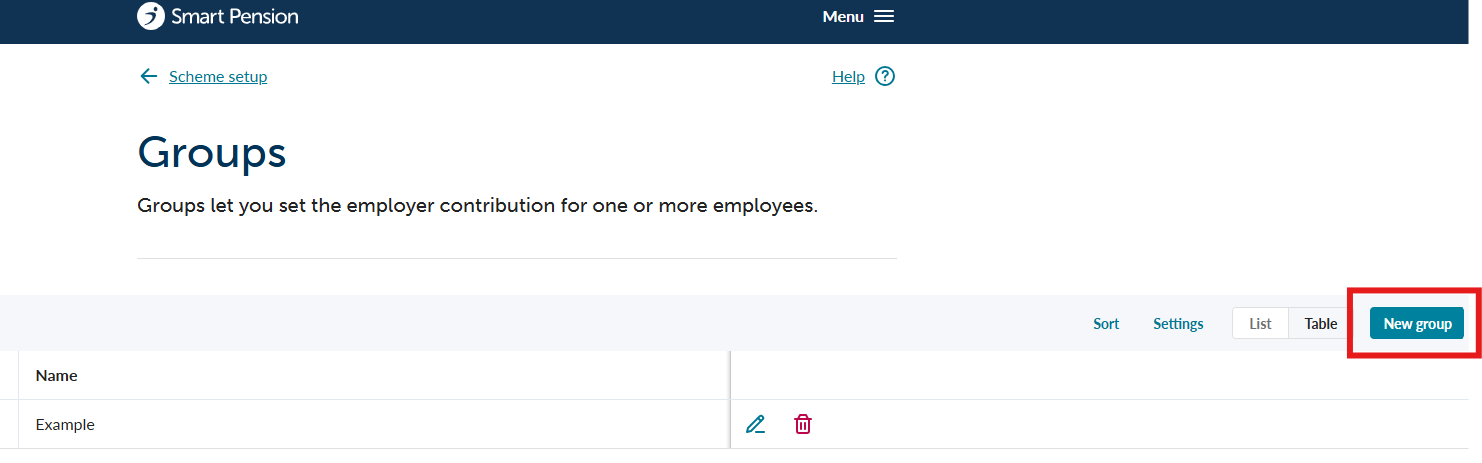
2 - Select Groups
3 - Click on New group and enter the new group name.
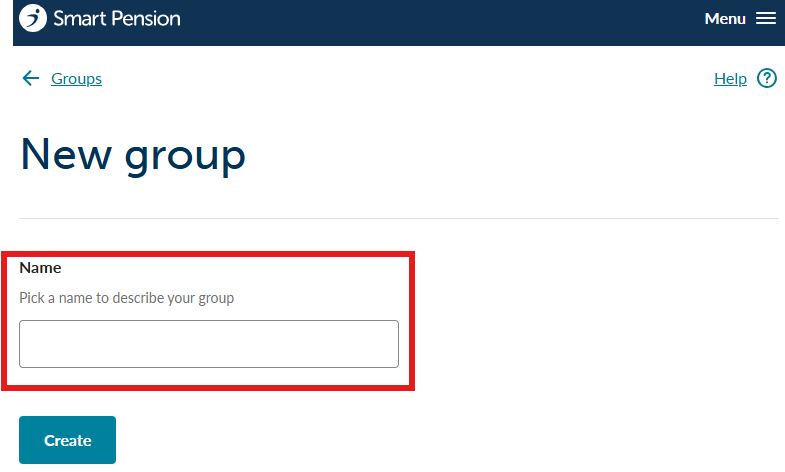
Press the Create button to create a new group with the given name.
4 - Add employees to the group
Once you have created a group you may use the bulk update tool to select one or many employees and assign them to an existing group.
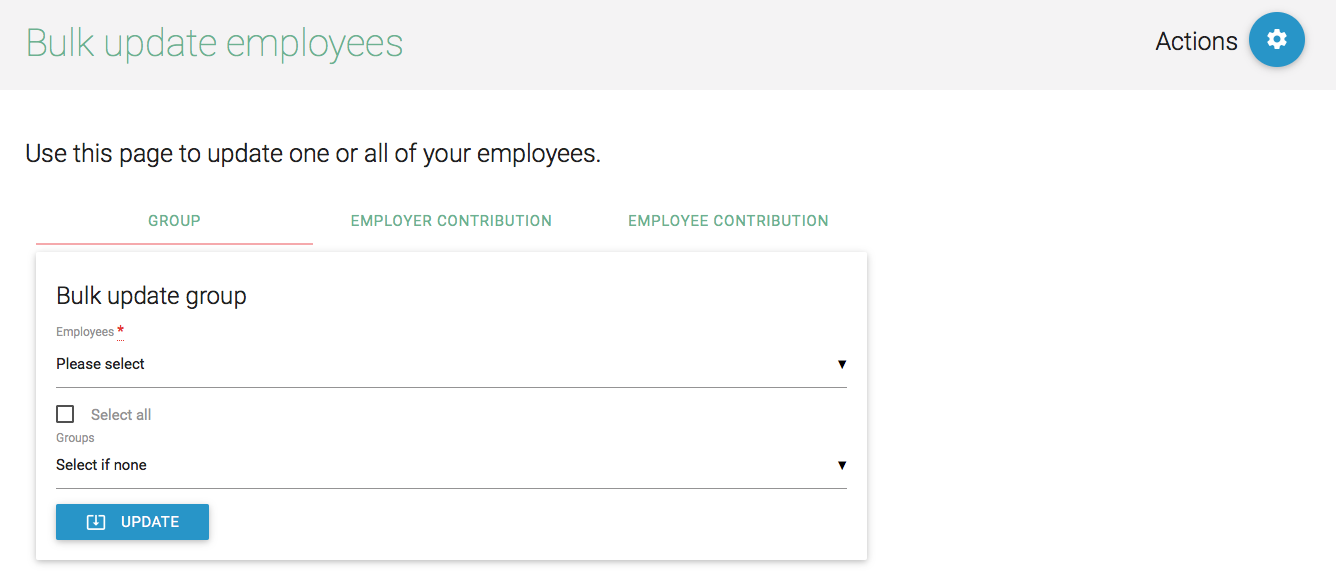
You can also add employees to groups individually using the employee update function.
Viewing groups
Use the instructions below to view your list of groups.
1 - Sign in to your account and go to Scheme Setup
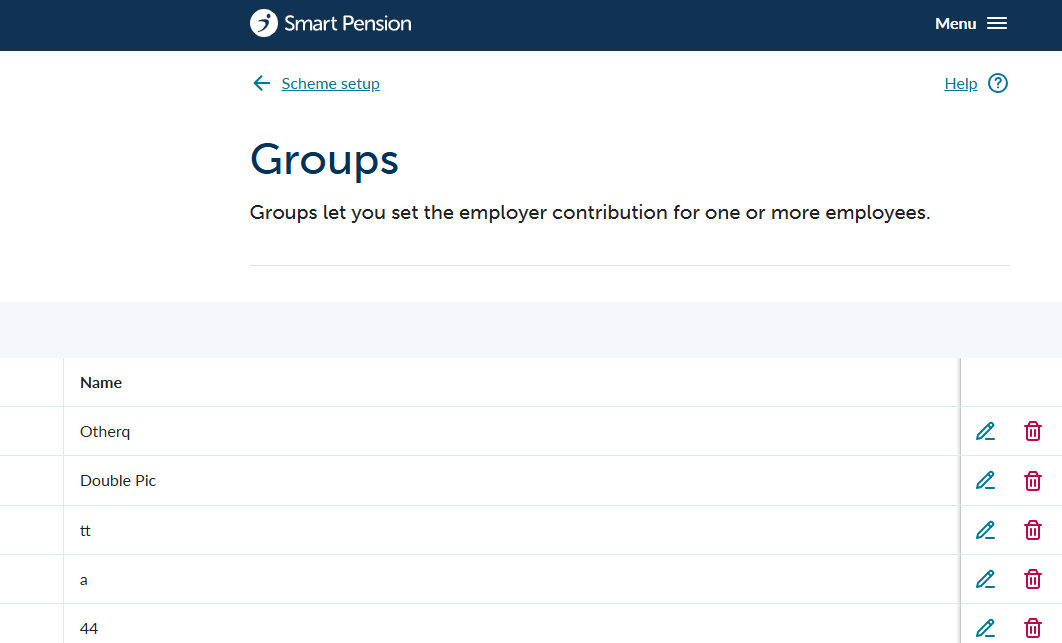
2 - Select Groups
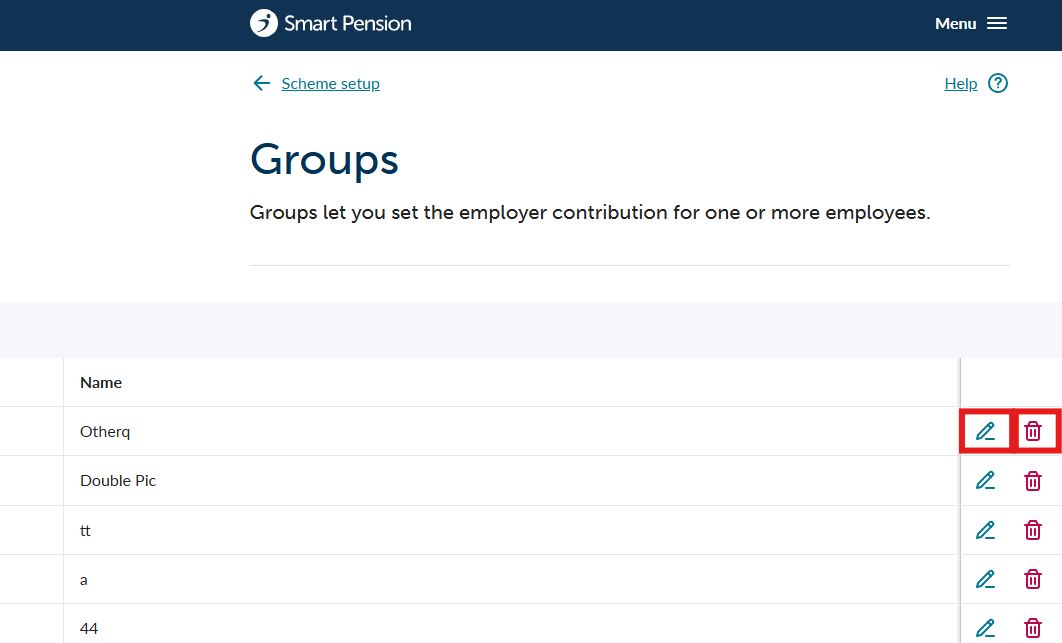
3- Your groups will be listed on this page
Editing or deleting groups
Use the instructions below to create a new group.
1 - Sign in to your account and go to Scheme Setup
2 - Select Groups
3 - Select the edit or delete icon and confirm your choice
Lorem ipsum dolor sit amet elit
Lorem ipsum dolor sit amet, consectetur adipiscing elit, sed do eiusmod tempor incididunt ut labore et dolore magna aliqua. Ut enim ad minim veniam, quis nostrud exercitation ullamco laboris nisi ut aliquip ex ea commodo consequat. Duis aute irure dolor in reprehenderit in voluptate velit esse cillum dolore eu fugiat nulla pariatur.